


Learning how to safely update WordPress plugins is crucial to maintaining your site’s security without risking downtime. Incompatibilities or caching issues frequently cause WordPress plugin update failures, leading to site breakage. To safely update WordPress plugins and themes, a full site backup is always required first.
If automatic updates fail or break the site, manual updates involve downloading the latest version, connecting via FTP/SFTP, deleting the old plugin/theme folder from /wp-content/plugins/ or /themes/, uploading the new folder, and verifying the update in the WordPress dashboard.
Recognizing an Update Failure: Common Symptoms
WordPress plugin update issues manifest in various ways, from complete site outages to subtle visual glitches.
- White Screen of Death (WSOD): A blank page after an update, typically indicating a critical PHP error.
- Missing Styles or Broken Layout: Visual elements appear incorrect or the design is distorted.
- Site Functionality Breakdown: Specific features or entire sections stop working.
- Update Failures/Stalls: Automatic updates fail or stall, leaving the site in an inconsistent state.
- Version Mismatch: The dashboard reports success, but the version number remains old.
Why WordPress Plugin Updates Fail: Technical Root Causes
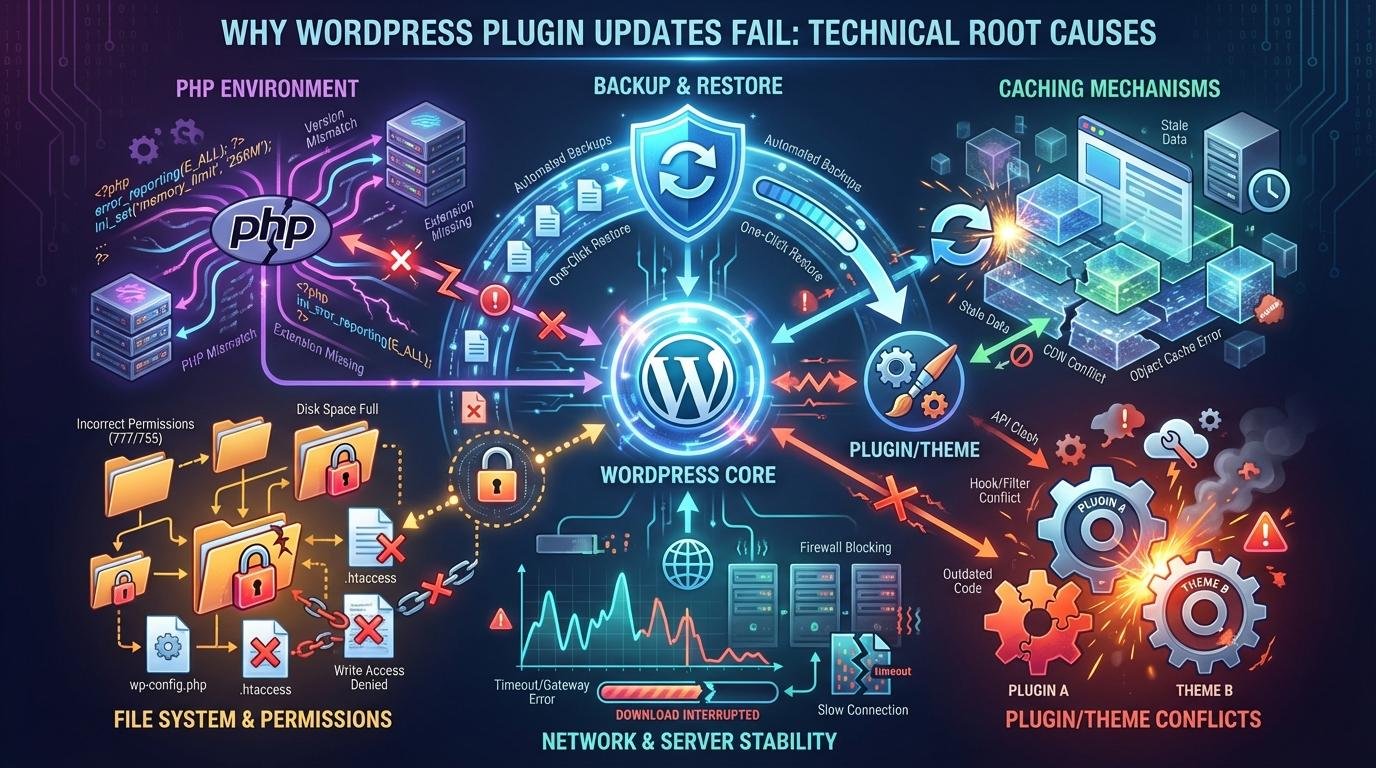
Visualization of the technical interdependencies during a WordPress update.
Update failures stem from specific technical issues such as PHP errors, outdated cached files, or plugin/theme conflicts. Incorrect file permissions and network interruptions also play a major role in halting the update process halfway.
⚠️ WARNING
Proceeding with manual updates or troubleshooting without a full site backup is extremely risky. Erroneous deletions or modifications can lead to irreversible data loss and extended downtime. Always prioritize a complete backup of both database and files.
Common Mistakes to Avoid During Updates
If you want to safely update WordPress plugins, you must never run bulk updates directly on a live production server without a backup.
- Manual update without a current backup.
- Ignoring child themes and losing customizations.
- Repeatedly retrying automatic updates without investigation.
- Indiscriminate plugin deactivation without a methodical approach.
Preparing to Safely Update WordPress Plugins
1. Always Back Up Your Site
Perform a full site backup (files and database) using tools like UpdraftPlus or Duplicator. This provides a safety net if things go wrong.
2. Use Child Themes for Customizations
Implement all customizations through a child theme. This prevents your code from being overwritten during parent theme updates.
How to Safely Update WordPress Plugins: The Manual Update Process
Step 1: Download the Latest Version
Obtain the latest .zip file from official sources like WordPress.org or the developer’s website.
Step 3: Delete the Old Version Folder
Locate and delete the existing plugin folder to ensure a clean installation.
Step 4: Upload New Extracted Folder
Extract your zip file and upload the folder to the server.
// Example: Manually enabling debug mode in wp-config.php
// Add these lines BEFORE the "That's all, stop editing!" line.

define( 'WP_DEBUG', true ); // Enable debug mode
define( 'WP_DEBUG_LOG', true ); // Log errors to debug.log in wp-content
define( 'WP_DEBUG_DISPLAY', false ); // Do not display errors on screen (for production)
@ini_set( 'display_errors', 0 ); // Hide PHP errors from users
Troubleshooting Post-Update Issues
1. For White Screen of Death (WSOD)
Enable debug mode as shown in the code block above. Review /wp-content/debug.log for specific PHP errors that identify the conflicting plugin.
2. For Missing Styles / Broken Layout
Clear all levels of cache: the site caching plugin (Autoptimize, WP Rocket), server-side caches (memcache, Redis), and your browser cache.
| Issue Type | Symptom | Quick Fix |
|---|---|---|
| Critical Error | WSOD | Restore backup, enable debug |
| Visual Distortion | Broken Layout | Clear all caches |
| Access Denied | Dashboard locked | Reset file permissions (755/644) |
💡 PRO-TIP
When performing a manual update via FTP, download the old plugin or theme folder to your local machine before deleting it from the server. This acts as an immediate fallback.
The Business Impact of Update Negligence
Neglecting updates carries significant business risks including downtime, revenue loss, and severe security vulnerabilities. Regular maintenance ensures your site remains a high-performing asset rather than a liability.
Frequently Asked Questions
Biggest risk of not updating plugins?
Security vulnerabilities are the primary risk, which can lead to data breaches, malware infections, or complete site takeover.
Can I update plugins without an FTP client?
Yes, many hosting providers offer a web-based “File Manager.” However, FTP clients are generally more reliable for larger uploads.
What if my site goes completely down after an update?
Immediately restore from the full backup made just before the update. This is the fastest way to get back online.
Need expert help?
If you’ve long due version updates and are afraid to do it on your own, i can perform a systematic upgrade of your themes and plugins and ensure ensure your site stays secure, updated, and optimized for performance.
